NRF TXT on MeshCore

I got pulled into a new hobby: mesh radio. It’s using the 915MHz ISM band with LoRa. Pretty simple in concept. Small radios act as modems. Apps on phones use BLE to talk to the modem. Messages get repeated by other radios.

There are two main, competing projects. Meshtastic and MeshCore. I think Meshtastic is superior in almost all aspects except for one. It falls over with high density. As a result of that, it lost traction in urban areas like Seattle. So, annoyingly, MeshCore became the de-facto standard around me even though it’s worse in nearly every way.

I started out on this adventure when I bought this thing: https://www.etsy.com/listing/1873027341/nrf-txt-most-advanced-stand-alone
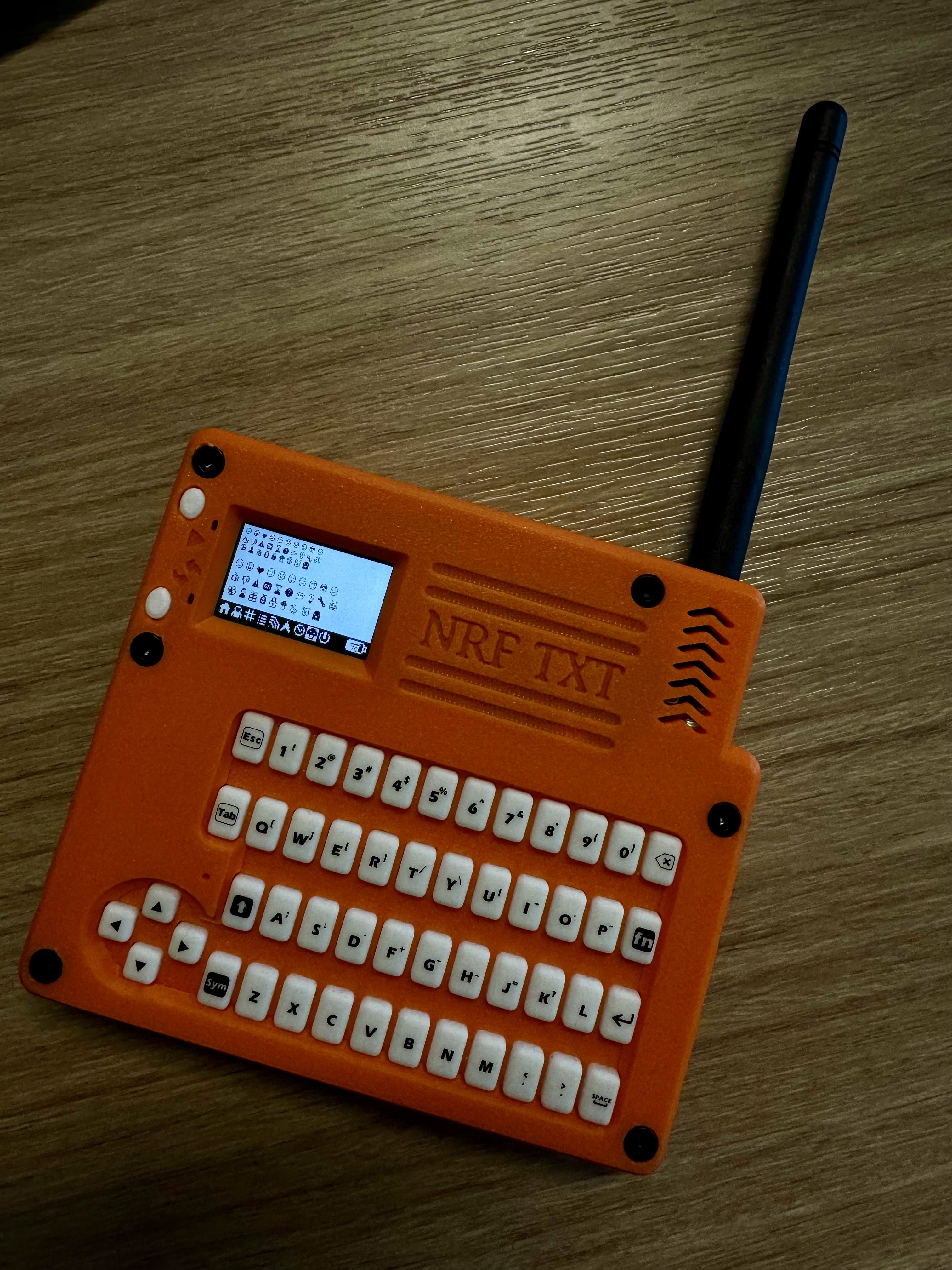
NRT-TXT

It’s this cute little device that was built for Meshtastic. It’s based on the Heltec T114 radio which is supported by MeshCore, but MeshCore is VERY phone-centric. In order to get this little guy to be a mostly standalone radio, I had to build a custom firmware.

After many hours of coding, vibe coding, drawing little icons, and testing. It’s finally working well enough to be usable-ish.

If you got one of these and want to try it on MeshCore, check out my FW project https://github.com/kallanreed/MeshCore/tree/nrf-txt-fw. I’ve also posted pre-built FW below. Updating the T114 is super easy.

  1. Connect the device to your computer.
  2. Double-press the restart button to enter the firmware update mode.
  3. Drag the uf2 file onto the device.
  4. Wait until it reboots.

You first need to add contacts and channels with the phone app but then you can send and receive messages using only the device. There are a few hidden UI things that are not intuitive so here’s a cheatsheet.

Global

  • FN+H: Go to Home screen.
  • FN+I: Toggle screen invert.
  • Any key: Wake the screen if it is off (the first keypress only wakes the display).

Home Screen Navigation

  • LEFT: Previous page.
  • RIGHT: Next page.

Lists And Prompts

  • UP: Move selection up.
  • DOWN: Move selection down.
  • ENTER: Select/confirm.
  • ESC or LEFT: Cancel/close prompt.

Home Page

  • FN+R: Mark all messages read.
  • ENTER: Open Options prompt (Toggle Buzzer, Toggle Invert).

Recent Adverts Page

  • UP / DOWN: Select advert.
  • ENTER: Add contact (opens Add/Cancel prompt).

Contacts Page

  • UP / DOWN: Select contact.
  • ENTER: Open contact thread.

Channels Page

  • UP / DOWN: Select channel.
  • ENTER: Open channel thread.

Thread Screen (Contact Or Channel)

  • ESC or LEFT: Return to Home.
  • FN+ENTER: Compose message (opens text input).
  • FN+R: Mark thread messages read.
  • ENTER: Open selected message in viewer.
  • UP / DOWN: Move through message list.

Message Viewer

  • ESC or LEFT or ENTER: Return to previous screen.
  • UP: Previous message.
  • DOWN: Next message.

Text Input

  • ESC: Cancel and return.
  • LEFT / RIGHT: Move cursor.
  • ENTER: Send/accept input.
  • BACKSPACE or DEL: Delete character before cursor.

Radio Page

  • ENTER: Open Radio Options prompt (Reset Stats, Toggle BLE, Advert: Zero Hop, Advert: Flood, Toggle Camp Mode).
    • Camp Mode is “Client Repeater” mode.

GPS Page

  • ENTER: Open GPS Sensor prompt (Enable, Disable).

Power Page

  • ENTER: Open Shutdown prompt (Yes, No).

Releases

Building R packages from source on MacOS

For some reason Apple decided to break building C/C++ on MacOS by moving the C and C++ stdlib headers into a rando location that most toolchains don’t understand. Amazing. I ran into this while trying to build the R ggplot2 package from source and got missing header errors.

When installing a package from source fails, you’ll see a message like this.
Warning in install.packages :
installation of package ‘Rcpp’ had non-zero exit status

If you look back in the build output, you’ll see errors about missing headers. Something like this:
In file included from api.cpp:26:
In file included from ../inst/include/Rcpp.h:27:
In file included from ../inst/include/RcppCommon.h:30:
In file included from ../inst/include/Rcpp/r/headers.h:66:
../inst/include/Rcpp/platform/compiler.h:100:10: fatal error: 'cmath' file not found

The problem is that Apple moved these files out of /usr/include and /usr/local/include into a magical SDK package that most things don’t know about. Luckily R provides a way to set up the build environment when building packages from source with a file called Makevars.

First you need to find the location of your headers. Assuming you already have the Xcode command line tools installed, run xcrun --show-sdk-path
> xcrun --show-sdk-path
> /Library/Developer/CommandLineTools/SDKs/MacOSX.sdk

In that package, you’ll find usr/include — but that’s not where the C++ headers are either. They are actually in usr/include/c++/v1.

Next, you need to create the Makevars file ~/.R/Makevars — you may need to create the .R folder first. (mkdir ~/.R)

Once you’ve created the Makevars file, add this build variable and save:
CPPFLAGS = -I /Library/Developer/CommandLineTools/SDKs/MacOSX.sdk/usr/include/c++/v1 -I /opt/homebrew/include

Open an R command prompt and run tools::makevars_user() — you should see the path to your new Makevars file if you put it in the right place.
[1] "/Users/username/.R/Makevars"

You should be good to go.

UPDATE – I still ran into more problems while trying to install the devtools package and needed additional tweaks. For reference, I’m trying to follow the setup steps for the book “The Art of Machine Learning” by Maloff where the ultimate goal of all this mess is to get install_github("https://github.com/matloff/qeML") to install correctly.

  • brew install libgit2

My Makevars file now looks like this hack-a-palooza. The R source packages are pretty dirty and their build scripts seem to need a lot of help selecting C++ version especially.
INCLUDE_PATH = -I/Library/Developer/CommandLineTools/SDKs/MacOSX.sdk/usr/include/c++/v1 -I/Library/Developer/CommandLineTools/SDKs/MacOSX.sdk/usr/include -I/opt/homebrew/include
CPPFLAGS = $(INCLUDE_PATH)
CFLAGS = $(INCLUDE_PATH)
CC = clang $(INCLUDE_PATH)
CXX = clang++ -std=c++17 $(INCLUDE_PATH)
CXX11 = clang++ -std=c++11 $(INCLUDE_PATH)
CXX14 = clang++ -std=c++14 $(INCLUDE_PATH)
CXX17 = clang++ -std=c++17 $(INCLUDE_PATH)
OBJCXX = clang++ -std=c++17 $(INCLUDE_PATH)

References: